Using the 3-2-1 strategy for digital backups
Introduction
I take hundreds of photos every month on my camera and phone, and over the years I’ve learned the importance of reliable photo backup strategies. In this guide, I’ll cover local storage, NAS devices, cloud storage, and the 3-2-1 backup rule to make sure your pictures are safe no matter what happens.
I assume that every backup will eventually fail, so I keep multiple copies of anything I want to keep. I’ve mentioned how I had my boot drive just fail without warning.
Every drive will fail. That is a constant. So I make backups… and backups of those backups.
How to Organize Your Photos on Your Computer
For most stuff, I store my images on my main home computer in a hierarchy defined by year and then by month. From time to time, I’ll add one-off folders for special projects, but I can usually find an image by knowing when I took it.
I don’t delete any files from my memory cards until after I have copied them to my PC and then also to the next level in the backup.
Using a NAS for Photo Backup
I love a good Network Attached Storage Device (NAS). I’m on my fourth. My first one was a cheap DIY PC running what was then called FreeNAS. It worked, but was no-frills and had no redundancy. It never failed, but I retired it for something new and shiny…
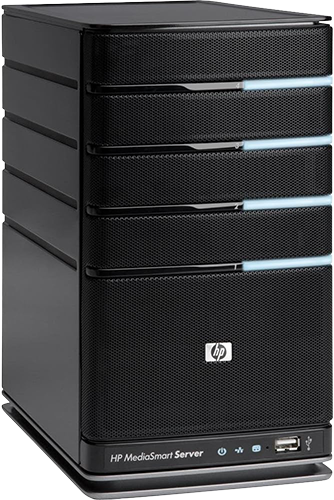
In 2010, I bought a HP EX495 MediaSmart Home Server. This was a 4 bay device, running Windows Home Server. It came with a 1.5 TB drive and room for 3 more. Windows Home Server had a RAID-like feature called Drive Extender that allowed multiple drives to appear as a single storage pool. It made it easy for consumers to add drives into a single storage pool.
It just worked. Until Microsoft decided that it no longer wanted to be in the Home Server market. They removed Drive Extender and drive management became much harder. Then they just killed it as a product.
I wasn’t comfortable running a device that wasn’t supported. In 2016, I bought a QNAP TS-451+. Another 4-bay mini-server, running a customized version of Linux. I eventually ended up with 4 drives of 4 TB each. The four drives are set up as RAID 6. The data is split over multiple drives and any two of them can fail without losing any data. RAID 6 has a performance penalty on disk writes, but not enough to impact how I use it.
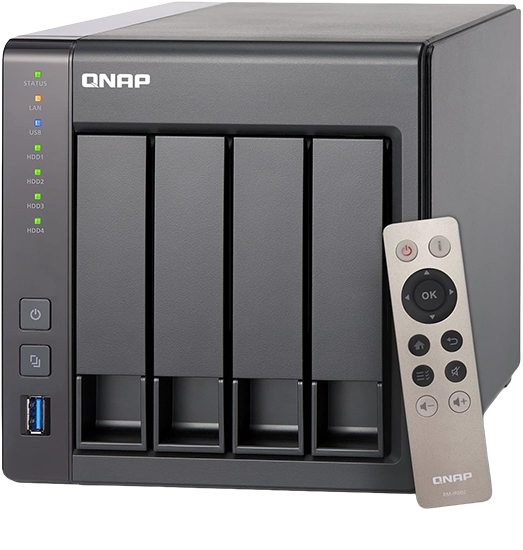
The TS-451+ worked great, until one day it didn’t. Apparently there was a fault in the CPU and it would just prevent the system from booting up. There was a work around, but it involved soldering a resister to the motherboard and I didn’t want to do that. It lasted more than seven years, which is an eternity for computers.
I replaced it 2 years ago with another QNAP NAS, the TS-464. I was able to take the drives out of the 451+, change the caddies that they mount into, pop them into the 464, and turn the machine one. It just worked. QNAP makes a nice home NAS. It will send me an email if there any actions that need to be taken.
I like the QNAP units. Synology is another good brand. Just remember to get hard drives certified for the NAS box. Drives designed for NAS boxes are designed for longer lifespans and typically have a longer warranty than hard drives intemded for home computers.

I have some scripts that use robocopy to copy my pictures and videos to the 464. Basically anything I create and want to keep gets copied to the NAS. I don’t need anything more elaborate than that. The scripts run quickly and I know exactly what is being done.
I can backup my wife’s pictures from her laptop to the NAS. It also makes it easy share files across the home network.
Offsite Backup for Your Photos
Backups at home are great, but if something happens to you home, your backups could be lost too. One option is to use external drives stored somewhere else.
Get two drives and rotate them. One stays at home, and the other is stored at another location. That other location could be with a family member, or at your office, or even in a safe deposit box. Have two driver and swap them every 3 to 6 months.
If you are storing them with a family member, get a big enough drive so they can store their pictures on it too. Go on the assumption that the drivers will fail after 3 to 5 years.
Cloud Storage Options for Photographers
You can store your files in the cloud. There are different ways to do this and the costs will vary.
If you have an Amazon Prime account, you get unlimited storage for photos. You can install the Amazon Photos for Windows or Mac and tell it what folder to backup. You can view the pictures from desktop, web, mobile, and Fire Stick.
Google Photos is another option. The free tier counts against your Google storage quota, and Google may apply compression depending on the upload settings.
If you are in the Apple ecosystem, you get 5 GB of free storage with iCloud and you can pay for more.
If you have a Microsoft 365 account, you get 1 Tb of OneDrive storage. For a family, each person gets a 1 TB. Plus you get all of the Office apps.
Dropbox has been around for a long time, but it’s generally more expensive than the other options.
There are sites that cater to professional photographers. You’ll get storage and the ability to setup gallery pages. This is a more expensive option, but can be useful.
Another option is to cut out the middle man and use the same cloud storage the big boys are using. Amazon has a storage service called S3 Glacier. It’s very cheap, but accessing the data isn’t in real time. You can pay for access within 5 minutes, or within 5 hours, or within 12 hours. This provides for very cheap storage costs.
S3 Glacier is deep storage. You can’t view the files online, you can’t search for them. Another drawback is that it’s hard to set configure for non-technical people. But it’s very cheap.
I have about 500 GB of pictures. This is a rough idea of what some of the various cloud services would charge to store all that.
| Service | Monthly Cost (approx) | Notes |
|---|---|---|
| Amazon Photos (Prime) | $0 | Unlimited photo storage for Prime members; video storage limited separately |
| Google Photos | $9.99 | 2 TB Google One plan needed for 500 GB |
| iCloud Photos | $9.99 | 2 TB iCloud+ plan needed for 500 GB |
| AWS S3 Glacier (Deep Archive) | ~$0.50 | Ultra-low-cost archival (~$0.00099/GB/mo); retrieval may take hours and may incur fees |
I’m not using S3 Glacier yet, but I’m planning to add software that will back up my pictures from the NAS to S3. I would consider S3 Glacier to be disaster recovery for when everything else is toast.
Understanding the 3-2-1 Backup Strategy for Photos
A lot of people use multiple layers of backup. A common strategy is the 3-2-1 rule. The rule stands for
-
3 copies of your data
The original and 2 backups -
2 different storage types
NAS, Cloud, external drive -
1 copy off site
Protects against theft, fire, flood, or local disasters
In my case, I have images on my computer, the NAS, and a portable drive stored offsite.
Someone else needs the keys to the kingdom
If something happens to you, who will be able to get at the pictures. Don’t be that person who is the only one that knows how to access all of the digital stuff.
Backups aren’t exciting until the day you need them. When that day comes, you’ll be very glad you made the effort.
Comments